How to Download the Holding Statement from the Trading App?

How to Download the Holding Statement from the Trading App?

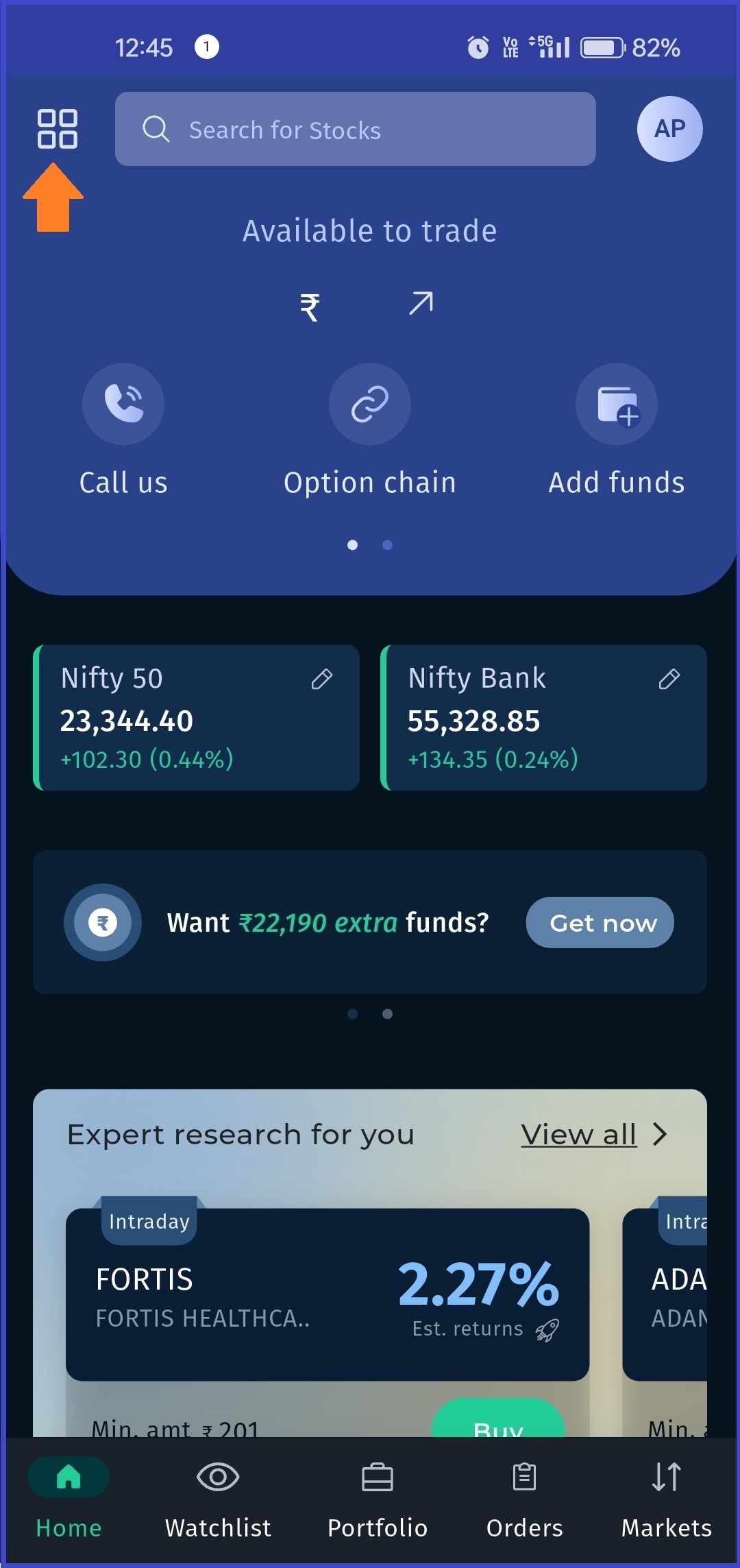
You can easily download your Holding Statement by following the below steps:


Login to the Trading App

Go to Menu & Click on Reports.


Select Other Historical Report (Back Office).


Tap on the Menu button (☰) available at the top left corner.


Click on
Holdings.

Download the statement by selecting either:

PDF format
, or

Excel format
, as per your requirement.


If you face any difficulty while downloading the report, please feel free to contact our support team at 08069049876 or mail us at helpdesk@swastika.co.in
    • Related Articles

    • How to check holdings on Swastika mobile app?

      To check your holdings on Swastika, you can follow the video or these steps: • Log in to your Swastika account. • Once you are logged in, you will see your home screen. Click on the “Portfolio” tab, on the bottom navigation bar. • In the holding ...
    • How to check holdings?

      You can see all the shares you own under holding. Open the desktop software and click on the Trading tab on the Access bar and click on the Holdings option. You will be able to view the complete list of all the stocks and shares you currently own. ...
    • How to check orders in Swastika mobile app?

      To check your orders in Swastika, you can follow video/these steps: • Log in to your Swastika account. • On the home screen, navigate to the "Orders” section. This section is located on the bottom navigation bar. • You will see your orders ...
    • How do I download and log in to the trading software?

      Swastika’s Justrade Pro is an advanced share trading desktop software. It facilitates market monitoring and buying and selling shares, seamlessly. Here is a step-by-step procedure on installing the trading software onto your desktop. Step 1: Visit ...
    • How can I add funds to my Swastika account through the web trading platform?

      Log in to Swastika Account. Go to the ‘Funds’ tab located at the top-right section of your dashboard. Enter the Amount and Proceed to Add Funds: Select Mode of Payment: A new window will pop up asking you to select a mode of payment. You can choose ...